
Print and refilling of print quota
Information about printouts at HVO:
Activation of the app
All students must download the Tungsten app to use the printing/copying system.
To use the printing service, students must download the Tungsten Business Connect app.
Students who do not have a smartphone can activate their student card. Read more here.
Activating the app
Download and install the Tungsten Business Connect app on your mobile device/tablet.

Open the app and enter "http://utskrift.hivolda.no/mobileserver" in the server address field or use this QR code:
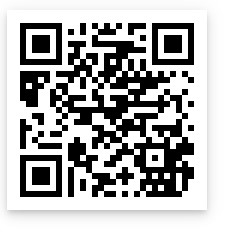
Log in with your username and password (FEIDE).
Video: Printing from your own machine
Video:
Printing from your own machine
MyPrint is a printing portal for mobile devices and for adding credit for printing/copying.
You can find the service here:
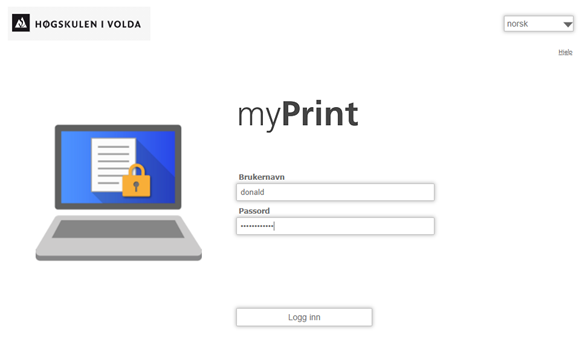
Upload the file you wish to print, select the appropriate settings and click on "Print".
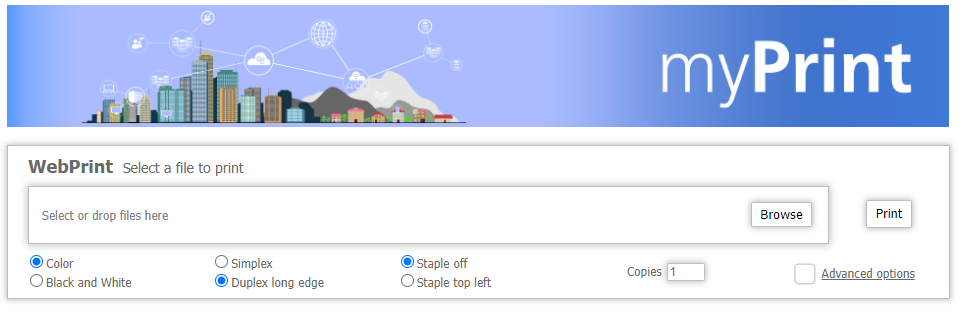
Go to a printer and hold your student card or the Kofax Business Connect app towards the card reader.
Select "Follow me print" on the screen.
Choose your files from the print queue and print them out.
Printing from HVO computers
Print your files to the printer "HVO-KOFAXCS-02".
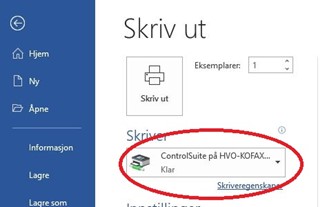
- Go to a printer and hold your student card or the Kofax Business Connect app towards the card reader.
- Select "Follow me print" on the screen.
- Choose your files from the print queue and print them out.
Video: Refilling of print quota
Sjå video:
Refilling of print quota
MyPrint is a printing portal for mobile devices and for adding credit for printing/copying.
You can find the service here:
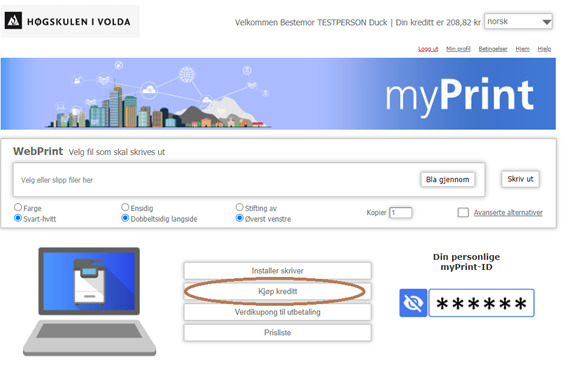
- Select "purchase credit"
- Choose an amount
- Click "Pay"
- Enter payment information.
Activation of student card
If you do not wish to use the Kofax app, you can use your student card.
To be able to use the print function, your card must first be activated. This only needs to be done the first time you use the printers at HVO. (If you use the app, you do not need to activate the card)
Activation of the student card:
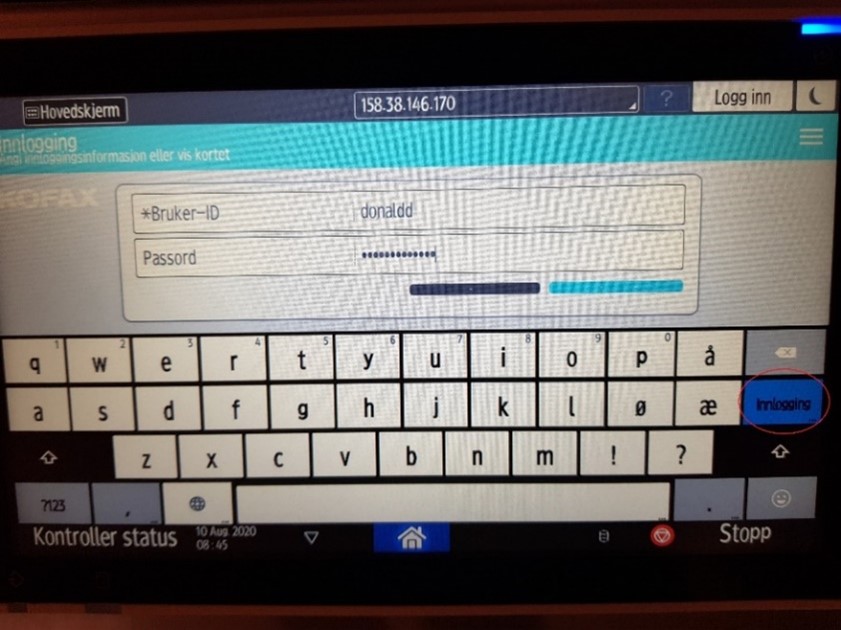
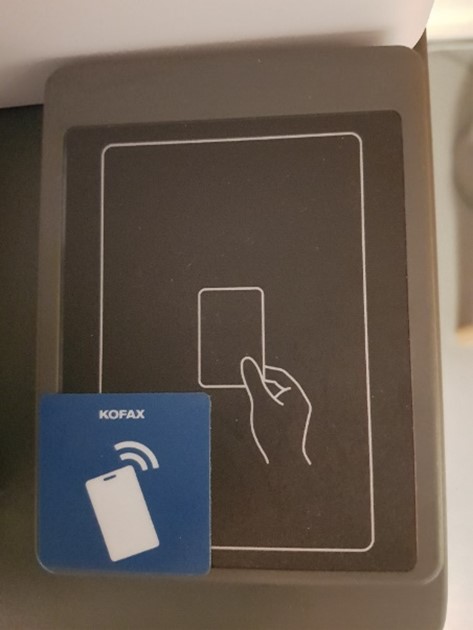
1. Hold the card against the card reader on the printer.
2. Enter your username and password (FEIDE login) and press the blue button at the bottom right labeled "Login" (Picture to the left).
Once this is done, the card is activated and ready for use in the printing system.
 |  |
Prices
- Black/white, A4, single-sided 0.60 NOK/sheet
- Black/white, A4, double-sided 1.00 NOK/sheet
- Black/white, A3, single-sided 1.20 NOK/sheet
- Black/white, A3, double-sided 2.00 NOK/sheet
- Color, A4, single-sided 1.20 NOK/sheet
- Color, A4, double-sided 2.20 NOK/sheet
- Color, A3, single-sided 2.40 NOK/sheet
- Color, A3, double-sided 4.40 NOK/sheet
All prices are in Norwegian kroner and include VAT. The prices apply to both printing and copying. It is not possible to get a refund after the money has been transferred to your print account. This also applies if you stop studying at HVO. You can transfer your balance to other students by sending a e-mail to myprint@hivolda.no